Using Custom Fonts in Android (Support Library 26)
Until recently, there was no official way to add custom fonts to Android apps — just a handful of community-built solutions to work around the problem. The most notable ones are:
Custom Views
With this approach, all you have to do is write a custom view to override the system fonts. If you want to change a button, for example, you build a new view that extends Button and write the code responsible for applying your own font. The snippet below shows how to set a view’s typeface, after placing the fonts you want in the assets directory — or in assets/fonts to keep things a bit more organized.
Typeface tf = Typeface.createFromAsset(getContext().getAssets(), "assets/" + fontName;
setTypeface(tf);
The Calligraphy Library
There are several popular libraries for doing this. The downside of the previous approach is that for every View whose font you want to replace, you have to build a new view that inherits its properties and then apply your custom font. A library is therefore a quicker, more practical solution. The best-known one is Calligraphy.
At the last Google I/O, the Android team announced many new features in Support Library 26, one of the most important being custom font support. Because this feature ships with the Support Library, older Android versions have no trouble rendering these fonts.
Using Custom Fonts with Support Library 26
To put this into practice, I downloaded an existing login/sign-up screen template that uses the old approach to font customization: view and download the template here. After editing the Gradle files and bumping the Support Library version, then building the app, you get the following screenshot showing the fonts used in the sample.
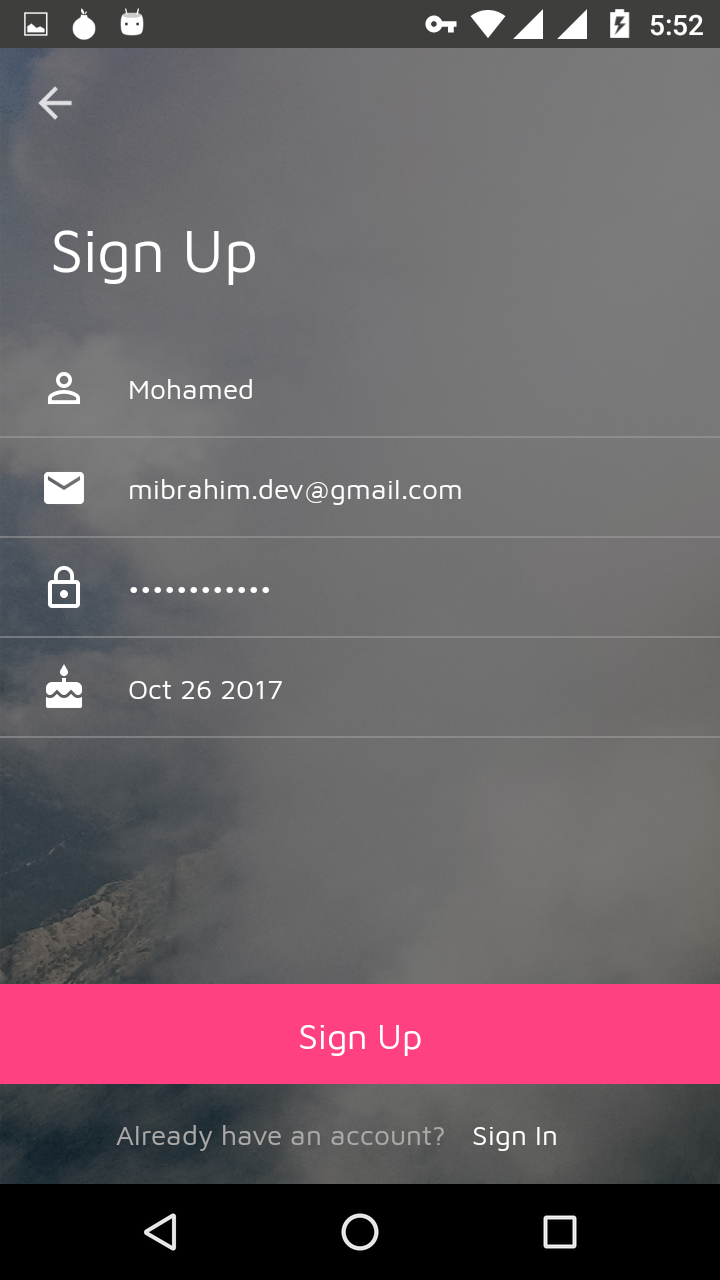
Now let’s follow the steps for using the Support Library…
- Right-click the
resfolder; from the menu choose New, then Android resource directory, and selectfontas the directory type. - Once this folder is created, move the font files from
assets/fontsto their new, now-official location,res/font. If you’re on the Android Studio 3.0.0 preview, you can click a font file to preview it — thank me later. - Now we’ll create a font family, which defines a set of fonts and their styles so the system can recognize them. Right-click the
fontfolder, choose New, and finally Font resource file. - Then add the following code…
<?xml version="1.0" encoding="utf-8"?>
<font-family xmlns:android="http://schemas.android.com/apk/res/android"
    xmlns:app="http://schemas.android.com/apk/res-auto">

<!--regular-->
<font
      android:font="@font/MavenPro_Regular"
      android:fontStyle="normal"
      android:fontWeight="400"

      app:font="@font/MavenPro_Regular"
      app:fontStyle="normal"
      app:fontWeight="400" />

  <!-- italic -->
  <font

      android:font="@font/MavenPro_Regular"
      android:fontStyle="italic"
      android:fontWeight="400"

      app:font="@font/MavenPro_Regular"
      app:fontStyle="italic"
      app:fontWeight="400" />

  <!-- bold -->
  <font
      android:font="@font/MavenPro_Bold"
      android:fontStyle="normal"
      android:fontWeight="700"

      app:font="@font/MavenPro_Bold"
      app:fontStyle="normal"
      app:fontWeight="700" />


</font-family>
Note: The lines must be duplicated using the app attribute to ensure support for older system versions.
Now we can use these fonts programmatically or through XML files…
Using them programmatically
Using the fonts in code is no different from the old approach. The difference is that you find them under R.font and retrieve them via ResourcesCompat. As an experiment, we’ll change the font on the custom views in our sample. You’ll find them in the customfonts folder.
if (!isInEditMode()) {
 	Typeface tf = ResourcesCompat.getFont(getContext(), R.font.app_font);
 	setTypeface(tf);
}
If we run the app now, nothing should change — we’re using the same fonts; only the approach is different.
Using them through XML files
We can use them via the fontFamily attribute.
app:fontFamily="@font/app_font"
So we’ll replace the custom views in the XML files with system or Support Library widgets, apply the line above, and run the app again.
You can use either app or android for the declaration, but android:fontFamily isn’t available until API 16; before that, use app:fontFamily. You may see a lint warning, but that’s fine — the declaration is correct. Once the fonts are applied in XML, we no longer need the custom views in customfonts and can delete them.
Using them through a style
We can also declare them in a style file like this.
<style name="TextAppearance">
        <item name="fontFamily">@font/app_font</item>
</style>
Finally, you may want to change every font in the app at once, without touching a specific widget. You can do this by setting fontFamily in the app’s theme through a style, like so:
<!-- Base application theme. -->
  <style name="AppTheme" parent="Theme.AppCompat.Light.NoActionBar">
    <!-- Customize your theme here. -->
    <item name="colorPrimary">@color/colorPrimary</item>
    <item name="colorPrimaryDark">@color/colorPrimaryDark</item>
    <item name="colorAccent">@color/colorAccent</item>
    <item name="android:fontFamily">@font/font_family_roboto</item>
  </style>
You can find the sample on GitHub, and review the steps above by browsing through the commits.
Sources:
https://developer.android.com/guide/topics/ui/look-and-feel/fonts-in-xml.html
https://segunfamisa.com/posts/custom-fonts-with-android-support-library